
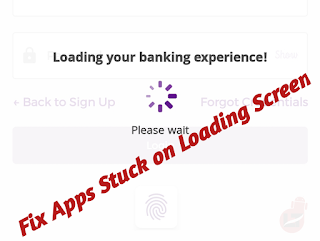
Have you tried opening an app in a time of urgency, only to have it get stuck on the loading screen? Here’s a quick guide to troubleshooting an app stuck on the loading screen for both Android and iOS devices.
There are many reasons an app might not respond on startup, including network issues, bugs, cache issues, or a device running low on RAM.
Although this issue may not likely occur on an ios device and if for any reason an app on your apple device froze then you can also check the below guides.
Whatever the case, you should be able to get an app to respond by following one of the troubleshooting guides below to fix an app that’s taking too long to load.
How do I fix apps that won’t open on startup?
This being a different case can be fixed by uninstalling and reinstalling the app, or, better still, clearing the app’s cache and data, then rerunning it.
In some cases, it might be a bug on the app developers’ end, so you can try reporting it to the app owners.
How to Troubleshoot an App Stuck on the Loading Screen
Well, I guess you should have tried your best to fix the issue before coming here, but we’ll do well to drop all the fixes that we think should fix a stuck app.
Without wasting much time, let’s see some of the effective ways to fix Android and iOS apps stuck on the loading screen.
Close and reopen the app.
This fix should work if the problem isn’t a major something: slide up to minimize the app, then clear it from the active apps, then try reopening it.
It should work perfectly if the other conditions for running the app, such as the network (if necessary), are intact.
Although this might not work for all apps, if it’s an OS issue or a corrupted APK bundle, see the further troubleshooting methods below.
Check your Internet Connection
A poor network connection can also keep apps stuck on the loading screen. If the app in question requires an internet connection to run, check your internet connection.
It could be that your network signal is poor; you can toggle airplane mode on and off to reset your internet connection, or check whether your subscription hasn’t expired.
If the problem persists, you can try opening the app over Wi-Fi, which should remove the app from the loading screen.
If not, then check the next fix.
Clear Apps Cache and Data
If you’ve tried the steps above and none seem to work, you can try clearing the app’s cache and data.
Most of the time, our device keeps an older version of an app, which causes a crash or error. To fix this, you’ll need to clear the app’s cache to fetch the latest version.
You can do this by going to Settings > App > locate the app > Storage and data > then clear the cache and data.
Try reopening the app once more, and it should work this time.
Update the App
There’s a chance you’re running an older version of the app, so navigate to your app store or the Google Play Store and check if a new update has been rolled out.
Click “update” to install the latest version of the app, which should include fixes for the stuck-on-loading-screen bug.
Re-Install the App
In most cases, it’s advisable to reinstall the app from the App Store or Google Play Store, especially if you previously installed it from an unauthorized source.
This helps you install the correct application package into your device, replacing the corrupt APK downloaded from the internet or other websites.
If this doesn’t fix the error, try the troubleshooting guide below.
Reboot your Device.
This should work if it’s a minor front-end issue; rebooting your device will close and restart all apps, making them start afresh.
Although this doesn’t work all the time, it goes a long way toward fixing an app stuck on the loading screen.
If this doesn’t work, try the troubleshooting below.
Update your device
The app in question might no longer support your smartphone’s OS, and you’ll need to upgrade your device to continue using it.
We all know that some apps require specific specifications to run on a device, even WhatsApp, and that some games stopped working on specific devices over the years.
Even if you download the app from another source,s you’ll undoubtedly encounter glitches along the way.
However, you might have forgotten to update your app before now. Please do so by navigating to Settings > Software Update > Check for updates, then download them.
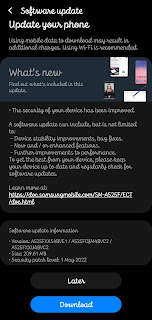
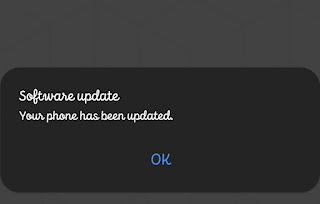
Once your phone has been successfully updated, then you should try running the app, and this should fix a stuck app on the loading screen.
Conclusion.
While this issue is rare, it exists most especially when you download your apps from external sources rather than the App Store or Play Store.
Well, even if your app got stuck on the loading screen, you should have fixed it using the troubleshooting guides above.
Kindly share and drop a comment below.
