
Here’s a detailed article on how to load, send, or deposit money into your Cash App using a QR code.
In case you don’t know, Cash App has a unique barcode attached to all accounts to make loading, sending, or receiving money easier.
This feature aims to relieve Cash App users of the burden of frequently sending their cash tag, email, or phone number to recipients when they want to send payments.
So, you can simply send them a screenshot image of the bar code associated with your Cash App account, and once they scan it from their Cash App, your account will come up.
It also helps to simplify purchases and payments made using Cash App, as you can simply scan a merchant’s QR code, and their Cash App profile will display.
Although not all merchants or persons support Cash App, some of the few businesses that support Cash App payments are Amazon, Lululemon, Target, Walmart, Walgreens, Dollar General, etc.
You can also do yourself the favor of asking if the merchant/person accepts cash app payments, as most people might prefer PayPal, Card Payments, or cash.
Another benefit of using the QR code to receive payments on Cash App is to reduce the rate at which a Cash App payment will be completed but not received, Cash App payment already claimed, and other Cash App payment-related issues.
Once you’ve confirmed that the source accepts or would like to deal using Cash App, proceed with the method below to get the location of your Cash App barcode to load money.
Does Cash App have a Barcode?
Yes, your unique Cash App barcode can be found at the top left side of your account. Clicking on it will display your QR code, which you can share with customers or friends for quicker payments.
You can also scan a user barcode by clicking on the scan section at your left.
How do you use a barcode to Load Money on the Cash App?
The cash app bar code isn’t limited to loading money to your account but can be used to make a payment online or at a physical store.
However, for this article, I’ll be talking about how to use the Cash App barcode to load money.
However, let’s show you how to get hold of your Cash App QR code that’ll be used or forwarded to the person sending the money.
- Log in to your Cash App account
- Click on your Profile picture to go to your account settings
- Tap on the icon located at the top left corner of your screen to open your QR code.
- You can now take a screenshot of the QR code and share it with your friends or embed it on a website.
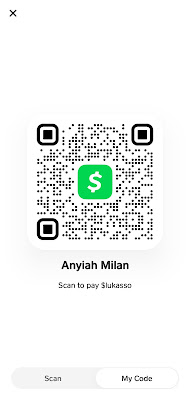
However, they’ll have to make sure the barcode is saved to another device for easy scanning.
Now, here’s how you or a friend can load money into your Cash App account using the sent QR code (barcode).
- Go to your Cash App dashboard
- Navigate to your account settings by clicking on your profile pic
- Tap on the square-shaped icon located at the top left side of your screen.
- Click on the “Scan” option beside it and give Cash App access to your camera.
- Now, place your camera in front of the saved screenshot, and the account details will display.
- You can now input the amount you want to load into the Cash App account and send the payment.
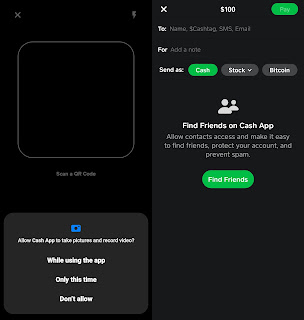
Alternatively, you can scan a saved barcode from the send or request payment tab on your Cash App.
- Open the Cash App
- Move to the “Request or Pay” tab on your Cash App account.
- Click on the box icon (with spaces in between) that’s usually located at the top left side of your screen
- Scan the QR code on the other device and complete the payment.
That’s how to use a barcode on a cash app effectively.
Conclusion
This method will serve if you’re looking forward to using your Cash App account without a card.
However, it’s also good to keep in mind that not all merchants or entities accept Cash App payments.
So, you might consider moving out with your Cash App card, debit card, or cash.
