
As a PC owner, you should check your laptop’s battery health regularly to estimate how long it will last on a single charge.

This battery check-up is reasonably necessary to ensure your PC battery lasts longer, know how many hours it can run before it runs down, and know when it is due for a replacement.
In addition, several factors determine the durability of a PC battery, including age, temperature, brand, power demands, and more. It’s believed that the best batteries should last at least 10+ hours on a single charge.
Although all Windows laptops have a “Battery Report Tool” feature that helps diagnose the health of your laptop battery.
However, in this article, we’re going to show you how to get your battery report using a command-line command easily.
How to Check Windows 10 PC Battery Health using CMD
The reason for using the Command Prompt is that it’s the fastest way to access the battery report tool; if you know how to use the other method, it’s still cool.
Now, take note as we take you through the battery report checking process,
- Click on the Start button, search for “CMD” and run as administrator
- Next, use the “powercfg /batteryreport” command to get your battery report.
- If successful, you should get a prompt saying “Battery life report saved to file path C:Users*****battery-report.html.

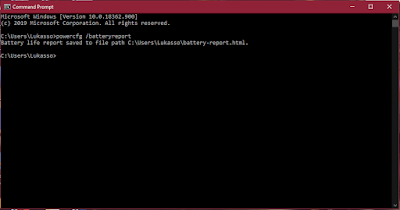
Now, all you need to do is locate the file (an HTML file) and follow one of the methods below to access the saved document.
- Navigate to your file manager > Windows 10 (C:) > Users > i.e., Lukasso > Locate the Battery-report.html file and click to open with any browser.
- Click on the Start button, search for battery-report and a search to occur > Hit on the result and launch it

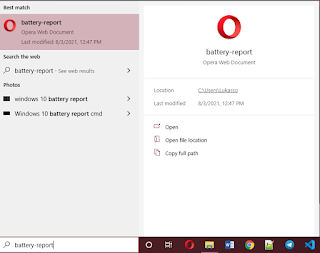
Next, after you’ve opened the “Battery-report” file using any installed web browser, you should see a long list of information, including battery usage, usage history, battery capacity history, and so on.
Once you have this list, you can diagnose your PC’s battery health using all of this information.
How to Check Laptop Battery Health: What to Lookup
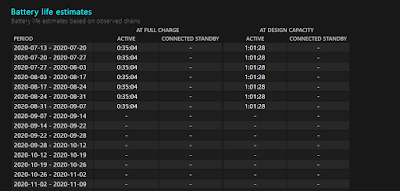
If you want to get the best report on how long your PC’s battery should last then you should skip to the Battery Life estimates section of your generated report, you should see an estimate of how long your battery should last based on how you’ve been using it in the past.
Also, note that errors might arise in the generated estimates, as they’re imperfect auto-generated estimates, mainly if you haven’t used the laptop for some time.
While checking the Battery Life Estimates, I suggest you focus on the:
1. Active Headings: This estimates how long your laptop should last based on recent usage, formatted in Hours, minutes and seconds…
2. At Full Charge: This is how long your battery can last currently since its purchase.
3. At Design Capacity: This is an estimate of how long your battery could have lasted if you just gotten it new from the company.
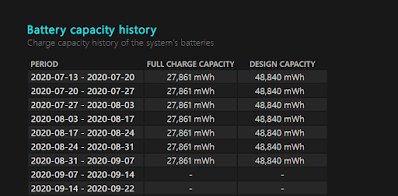
You can also decide to proceed to the Battery Capacity History section to get insight into Full Charge Capacity relative to Design Capacity.
The Full Charge Capacity is simply a measurement of how much power it actually holds, whereas the former refers to the amount of power it was designed to hold.
So once you notice that your laptop’s full charge capacity has dropped to 25% – 50% than its designed capacity, then it’s time to consider a battery replacement.
How to Check Your PC Battery Life by Yourself

- After you’ve generated a battery report as outlined above, navigate to the Battery Usage section to see a chart of how the battery was used over the past few days.
- Now, please charge the battery to the brim, then drain it to zero without hibernating or going to sleep.
- You can also disable any automated power-consumption features to achieve the best results.
- Now, start the discharging process by watching a movie, playing a game, or doing any task that will keep you busy.
- Keep a check on the time from when you started using the PC till when the power goes off.
