
Do you know you can assign another function to your power button when you press it?
If you’re used to accidentally shutting down your PC when it’s in use, well, here’s a way to either disable the power button or make it do something else.

Most people accidentally press their power button, causing them to lose their current work, which is quite stressful.
However, with the steps below, you’ll have plenty of options for configuring the power button to sleep, hibernate, or do nothing.
To change the way the computer’s power button works in Windows 10, you’ll have to do that in your control panel.
- Firstly, launch the Control Panel by typing “Control” in the Start menu and hitting Enter.
- Navigate to “Hardware and Sound.”
- Locate the “Power Options” and click “Change what the power buttons do“
- Now, under “Power and Sleep Button Settings”, click the drop-down menu beside “When I Press the Power Button.

You’ll be presented with several choices for when the PC is on Battery and when it’s plugged in. Below are the options and what they do;
- Do Nothing: When you hit the power button, nothing happens.
- Sleep: Your PC enters a low-power sleep mode while still running.
- Hibernate: Your PC saves the current state of your memory on disk and shuts down. All your sessions can be resumed later when you power back up.
- Shut Down: The default action; it shuts down Windows and powers off the PC.
- Turn off the Display: Your display turns off, but your PC keeps running.
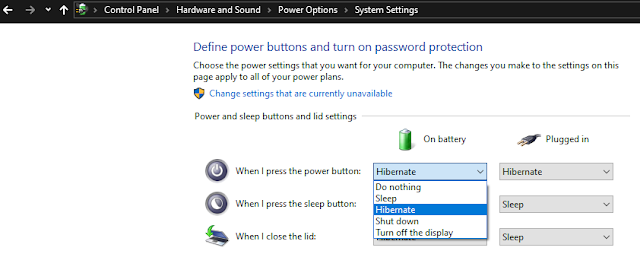
Now, to avoid losing your work when you hit the power button, I suggest you select an option other than “Shutdown” to prevent accidental shutdowns.
Nevertheless, if you don’t want any interruption as a result of touching the power button, choose “Do Nothing.
Next, click “Save changes” and close the control panel.
That’s all.
You can confirm changes by pressing the power button and verifying that it functions as you’ve programmed. You can still shut down by pressing “ALT + F4” and selecting shutdown from the drop-down.
Alternatively, you can repeat the above step and set the power button to shut down on press.
Kindly drop a comment below and share the post with friends.
