Here is how to make your Android phone feel much faster using Developer Options in Settings.
It is not new that a device tends to lag or slow down over time.
As such, you might start making some adjustments on your device, such as deleting unwanted files, uninstalling unused apps, clearing the cache, moving files to a flash drive to free up space, and so on…

Well, what if I tell you there’s a way to make your Android device work faster without necessarily doing all these?
Thanks to the developer options on Android and Tablet devices, which allow you to tweak your device’s software to achieve the desired output.
Most of us are familiar with Developer mode/option, but we don’t know how to use it to its full potential, while many of us activate it without using it at all.
So that you know, the developer options can help you achieve a lot of customization on your Android device. Although we aren’t supposed to discuss the importance of dev mode in this article, let’s highlight key things you can do with the dev options.
- App compatibility Changes
- System Tracing
- Enable mobile data to always be active, even when connected to Wi-Fi
- Show Bluetooth devices without names
- Force Dark Mode
- Don’t keep activities(destroy activities as soon as you leave them)
- Mock location
- Force Desktop Mode
- Force activities to be resizable
- Background process limit
- Increase device speed
- Force allow apps on External Storage, etc.
The above features are just one of the hundred tweaks that can be done using developer mode.
Now, let’s see how to access Developer Options, adjust the settings that control animation speed on your device, and enjoy your device 10x faster than before.
How to Make Android Faster with Developer Mode
- First of all, scroll down and go to Settings
- Scroll to the bottom to About Phone
- Tap Software Information > Build Number
- Spam Tap on the Build Number up to 5 or 7 times to unlock Developer Options
- Go back to Settings and scroll down to locate the Developer Options.

Scroll to locate the:
- Windows Animation Scale: 1x (may vary)
- Transition Animation Scale: 1x (may vary)
- Animator Duration Scale: 1x (may vary)
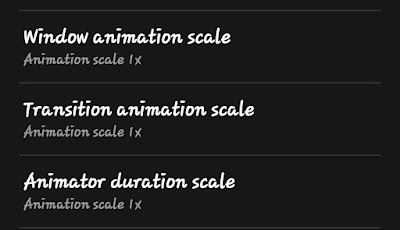
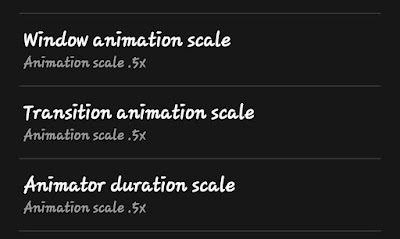
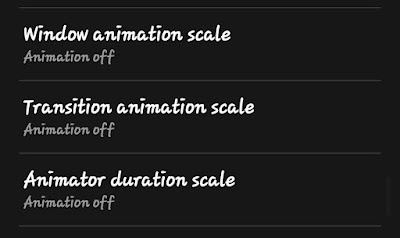
Now change all the animation scales from their default 1x value to .5x
- Windows Animation Scale: .5x (may vary)
- Transition Animation Scale: .5x (may vary)
- Animator Duration Scale: .5x (may vary)