
Got new AirPods and would like to rename them to distinguish them from other connected audio sources? Here’s a complete guide for you.

AirPods are an excellent pair for listening to music, but there could be trouble differentiating them from another new pair if not renamed.
This is because most AirPods come with a company-specific name – “AirPods”, “AirPod Pro”, “AirPods Pro” and “Oraimo Freepods” in the case of Android users.
In this case, it could be easy to switch your AirPods with another person.
Well, except when you try to connect each AirPod to see which one you’ve been paired with earlier.
You can also identify your AirPods by the inscription you put on the charging case, but that’s only if you’ve got the correct pods in your case too.
Changing your AirPods name reduces theft and helps you connect to them more easily.
Also, renaming your AirPods doesn’t change the name permanently; it just changes it on your device, but it would still be visible to other devices as the manufacturer’s name.
You can give your AirPods a new name in the Settings app, under Bluetooth.
Without wasting much time, let’s see five steps to take to rename your AirPods for both iPhone, Android, and Windows users.
How to Rename AirPods on iPhones, iPads, and iPods
Your AirPods should be connected to your iPhone while initiating the renaming process.
So, it should be done in an enclosed space where there’s no other available device that might confuse you, probably in your bedroom.
- Pair your AirPods with your iPhone, iPad, or iPod device.
- Raise the lid of the charging case or insert one of the AirPods into your ear to stay connected.
- Navigate to settings > Bluetooth settings
- Click on the little “i” icon in front of the connected AirPods
- Rename your AirPods by clicking on Name.

Once you’re done with the above process, the display name of your AirPods will change on your device.
You can repeat the above process for all iOS devices (iPad and iPod) paired with your AirPods.
How to Rename AirPods on an iMac PC
Here’s how to change your AirPods name on your Mac PC.
- Click on Bluetooth from System Preferences
- Now, locate a pair of AirPods and right-click on them
- Tap Rename from the options
- Type in your preferred name and click on Rename
How to Rename AirPods on Windows PC
Windows users can follow this sleek method to rename a connected or paired AirPods device or other connected devices.
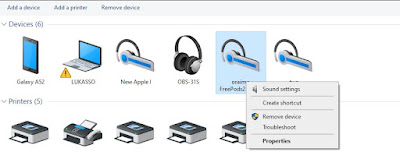
- Go to Control Panel using the search box
- Under “Hardware and Sounds, ” click “View devices and printers.
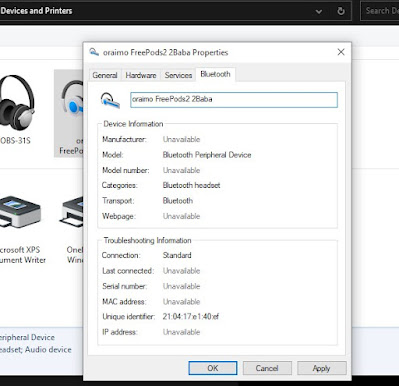
- Right-click on the paired AirPods, in this case,> Click on Properties
- Slide to the “Bluetooth” tab and edit the name.
- Click on “OK” to save the action.
How to Rename AirPods on Android
The process of giving your AirPods a new name on Android is similar to that of the iPhone.
You can even rename previously paired or connected AirPods without keeping the device connected.
All can be initiated from the Bluetooth settings.
- Go to settings
- Select “Bluetooth “ under Connected Devices and turn it ON
- You can either go to your “Previously connected devices” or “Pair a new device.”
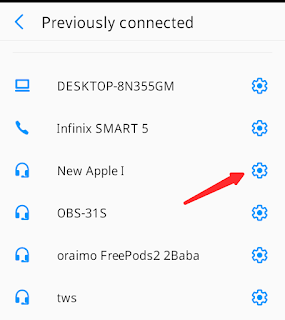
- Locate your AirPods under the previously connected devices
- Click on the gear icon ⚙️ in front of it
- Now, click on the pencil-like icon at the top right corner of your screen
- Input a new device Name and click on “RENAME.”

However, if you’re currently connected to your AirPods, you might not find it in your settings.
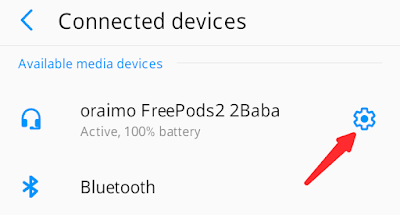
- Go to settings > Connected Devices
- Click on the gear icon beside your active AirPods name
- Tap the pencil ✏️ icon at the top-right corner of the page.
- Input a new device name and click on “Rename.”
That’s it.
You can now connect to your AirPods using the assigned name.
How to Rename AirPods on Samsung Phones
Samsung devices might run Android, but there seems to be little difference in how settings are handled.
Here’s a guide for those who would love to rename their AirPods on a Samsung device.
- Open the Settings app
- Click on Connections > Click on the Bluetooth option > Switch it ON
- You’ll see a list of previously paired devices and also available devices to pair with.
- Click on the gear icon ⚙️ beside a previously paired device – AirPods in this case.
- Click on the “Rename” button located at the bottom left corner of the screen.
- Type in a new name and click on Rename to complete the action.
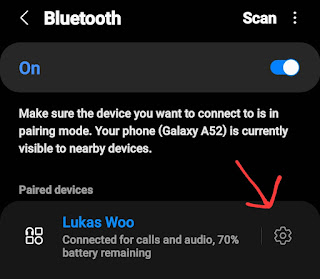

Can you see the possible differences, right? It’s pretty understandable if you’re familiar with Android.
AirPods Renaming FAQs
Why does my AirPods name revert after a change?
The cause might be entering an unsupported text format into the name box.
However, if you know you are not breaking these rules and the name keeps reverting, then you should forget it and pair the device back.
Forgetting a device is almost as simple as renaming your AirPods; you should see them during the renaming process.
Conclusion
Renaming your AirPods is a must-do, especially for Android or iPhone users using popular AirPods brands.
It helps you quickly identify your AirPods and reduce the AirPods theft rate.
