
As we all know, Facebook is one of the most popular social media platforms.
Adding friends who, in turn, accept your friend request and then viewing each other’s posts are exciting parts of being a user.

So imagine seeing a profile that catches your interest and then you go to add the person, only to discover that the “add friend” option has mysteriously disappeared, right?
You can’t add someone on Facebook for several reasons, and it doesn’t automatically mean that the person has blocked you.
A user on Facebook can restrict who can view their profile and timeline, and who can send a friend request or follow them, to public, friends, acquaintances, or custom audiences.
People nowadays prefer to keep personal information private.
Most people also don’t share their friends’ photos with everyone; only friends can see mutual friends. You can restrict the audience from seeing and reacting to content posted on your timeline.
In this article, I will give you several reasons why you can’t add someone on Facebook and how to cancel already-sent friend requests.
Why can’t I add someone as a Friend on Facebook?
Privacy settings
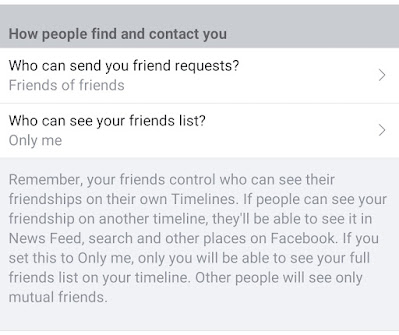
If a user changes their Privacy settings to only ‘Friends of friends’.
This means you can’t send a friend request to a user unless you have a mutual friend. You can do this by going to Facebook settings > Profile Settings > Privacy > Change “who can send you friend requests?” to everyone or “friends of friends.
Disabling the Friend Request Option
Also, if any user changes their privacy settings and disables the friend request option, that means you can only follow them. Check out how to add the follow button to your Facebook account here.
Account Deactivation
This can also happen if the user deactivates their account.
There are times when users deactivate their Facebook accounts, maybe to take a break or for other reasons, and when such happens, you will not be able to add their accounts.
User Blocked You
You will also be unable to add a user if they blocked you for some reason. If this happens, you might not see their profile, let alone add them, which means there are no interactions with them.
You Blocked User
Also, if you have blocked that user for any reason in the past, you can’t add them.
Blocked Account
Facebook blocking the user might be another reason you cannot add them. Facebook might block a user’s account for a short period.
If this is the case, the account will return to normal activities after a brief period, and you can then send them a friend request.
Pending Friend Request
Also, if your previous friend request to the user is still left pending, then you might be able to send another friend request.
If the user has repeatedly denied your requests, you might not see the add friend option.
You’ve sent a lot of Friend Requests.
If you’ve sent a lot of friend requests and most of them are still unanswered, Facebook will limit your ability to send further requests until your past requests are addressed.
You can cancel the friend request by yourself if you want to re-enable your ability to send requests.
They have reached their friend limit, or you have reached yours
Facebook usually has a friend limit. This means users are allowed only up to 5,000 friends. If the user’s account has reached its limit, you can’t add them as a friend.
Also, if your account has reached its limit, you won’t be able to send any friend requests. However, you can interact with the user by sending them a message.
How to Remove the Add Friend Button on Facebook
You might have gotten enough friends on Facebook and do not wish to get more friend requests. These are the easy steps to follow if you want to hide the add friend button:
Open the Facebook app on your mobile phone or a web browser.
Click on the “three horizontal lines” icon on the top right.
Go to the “Settings & Privacy” option and click on the Settings option.
Click on the “Privacy” option.
Go to the third section, “How people find and contact you,” and click “Who can send you a friend request.”
Then select the “Friends of Friends” option.
How to Cancel Sent Facebook Friend Requests
If you’ve sent many friend requests in the past few days and most haven’t been accepted or declined, you can cancel the request from your account.
This will enable you to add new friends and help you filter out those who don’t want to accept your friend requests.
For this tutorial, we’ll use the Facebook Lite app for illustration, so that the steps might differ for those using the Facebook app. Regardless, you can use the comment box, and we’ll help you.
- Open the Facebook Lite app and sign in
- Go to the friend’s section, usually next to the home icon
- Tap on Requests to see all friend requests sent to your account
- Now, tap on the three vertical dots at the upper right-hand side of the screen to pop up a “View Sent requests” option
- Click on the option to view your sent Facebook Requests
- You can now start canceling anyone you feel isn’t worth the wait.
That’s all.
You can read more about this here > How to Cancel All Sent Friend Requests On Facebook
