
Privacy has been a concern over the last few months, and most organisations aren’t helping keep your data secure as they monitor and record your activity on their platforms.
Facebook isn’t exempt from this; it even monitors our Off-Facebook activity, meaning that even when you’re not logged into the app, it still tracks how you interact with apps on your phone.

Our Off-Facebook activity includes information that businesses and organisations share with Facebook, including your interactions with them (e.g., banks, websites, and apps).
This feature is active by default, and I’m sure most of us reading this aren’t aware of this. Now, think of this: you made a call about purchasing a shoe, and when you get onto Facebook, the ad you see is for a shoe.
At that moment, you’ll know that there is a leak somewhere, and this comes as a result of our data being sold amongst these big organisations for their profit.
Nevertheless, this article will give a detailed guide on
- How to see all apps that share your data with Facebook,
- How to clear off Facebook activity history and
- Disconnect your account storing future off-facebook activity
Without wasting much time, let’s briefly turn off Off-Facebook activity on our accounts and stay a bit secure.
How to Deactivate Off-Facebook Activity on Your Facebook Account
We’ll use Facebook Lite to illustrate how this is done below, although the interface might differ on PC versions; it is still the same option.
- Log in to your Facebook account,
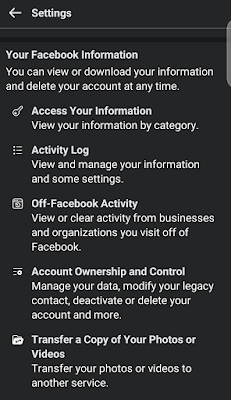
- Click on “Settings” from the drop-down menu on the right-hand side
- Scroll down to the “Your Facebook Information” section
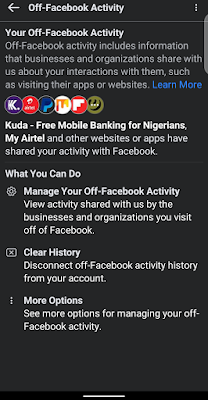
- Click on “Off-Facebook Activity“
- Now, you’ll see all the apps that share your info with Facebook. e.g., PayPal, Kuda, CashApp, etc.
- Next, click “Clear History,” then “Clear History” again on the next page to clear any previously stored data.
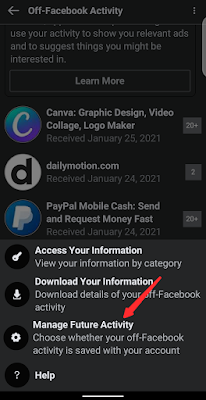
- Now, to disconnect from Off-Facebook Activity, click “More Options” in the list.
- Select “Manage Future Activity” and then “Manage Future Activity” again in the next tab.
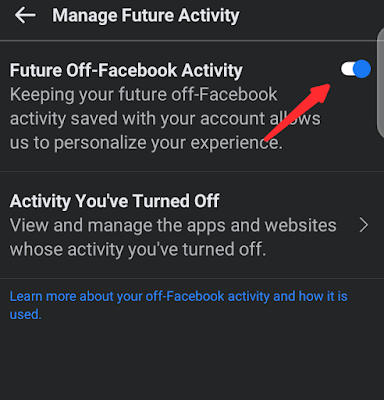
- Now you’ll see the “Future Off-Facebook Activity” option with a blue toggle next to it.
- Turn the Toggle “OFF” by confirming your password and agreeing to any disclaimers that may apply.
- Finally, go back and Clear history once more, and that’s all.
Check the images and videos below for further clarification on how to stop Facebook from tracking your activities offline.
That’s all on how to stop Facebook from tracking your offline activities.
Kindly drop a comment below and do well to share the post with friends on all your social media platforms.
